

By Meraki Theory · Presentation design agency
Letter spacing in Google Slides is possible. This guide explains how to adjust the space between letters, what to do if the control isn’t available in your account, and how to use Meraki Theory’s tool.
As a presentation design agency, we’ve worked with clients including Airbnb, Cisco, Stripe and Microsoft. Here’s how we approach this small but important detail.
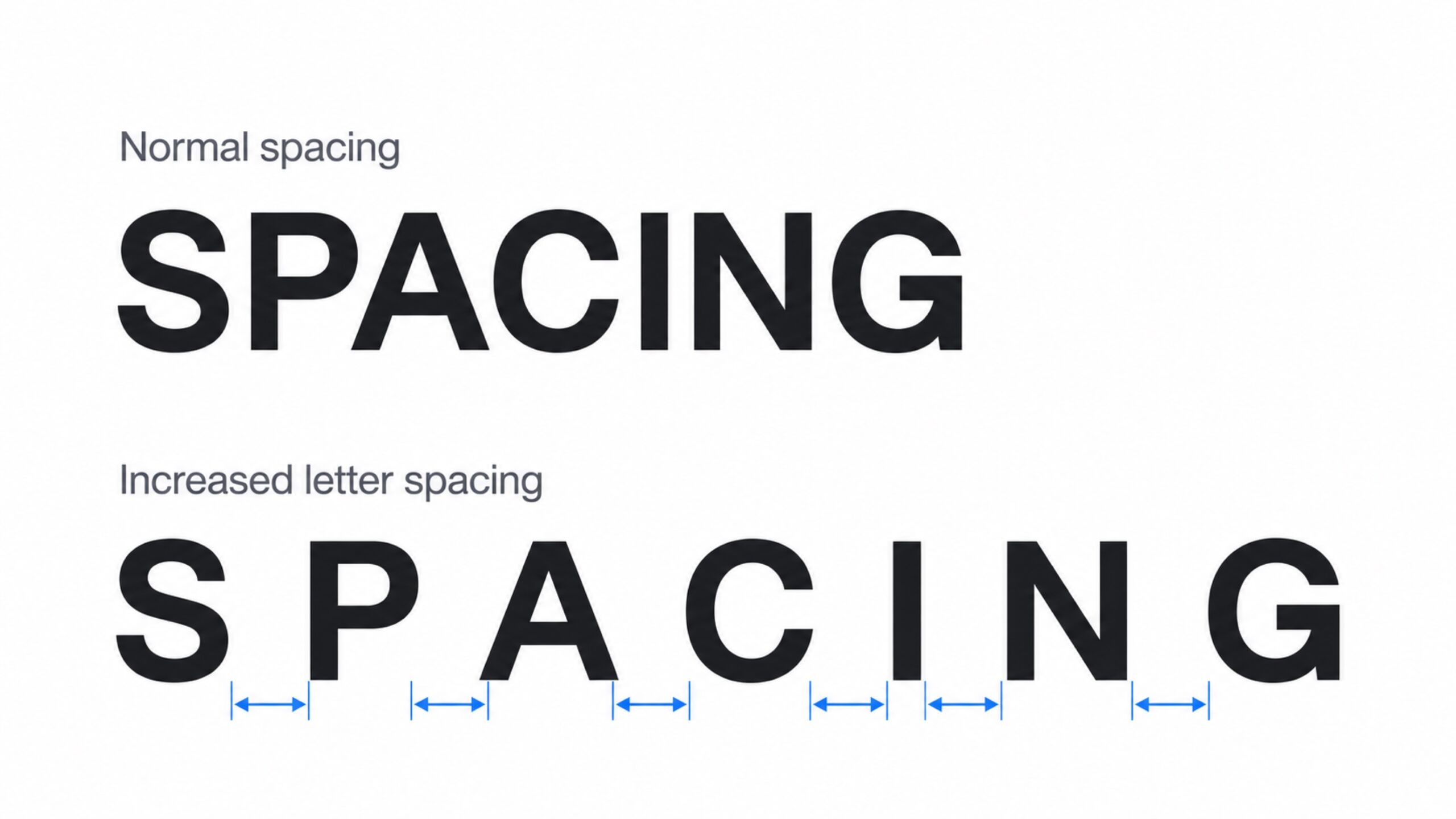
1. Use the letter spacing button
Availability: Follow the native steps below only if the controls appear in your interface. Google’s text-formatting guide documents letter spacing for Google Docs; availability in Google Slides remains unverified.
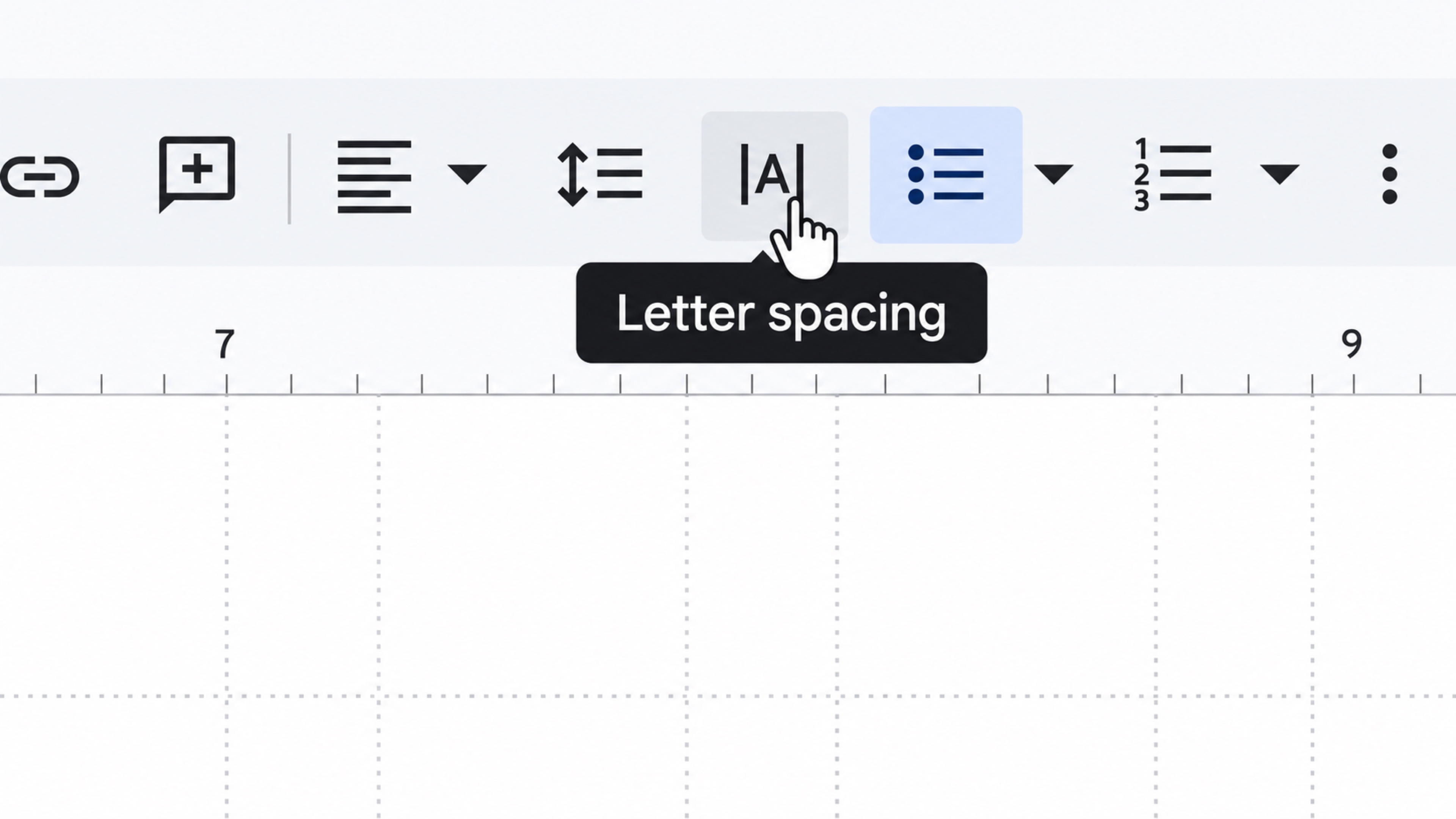
When Letter spacing appears in your toolbar:
- Click inside the text box and select the characters to format.
- Open Letter spacing and choose an available option or custom value.
- Compare the result with the original. Check the headline for new line breaks.
Image note: The toolbar and menu images in this guide are recreated UI examples.
2. Use the letter spacing submenu
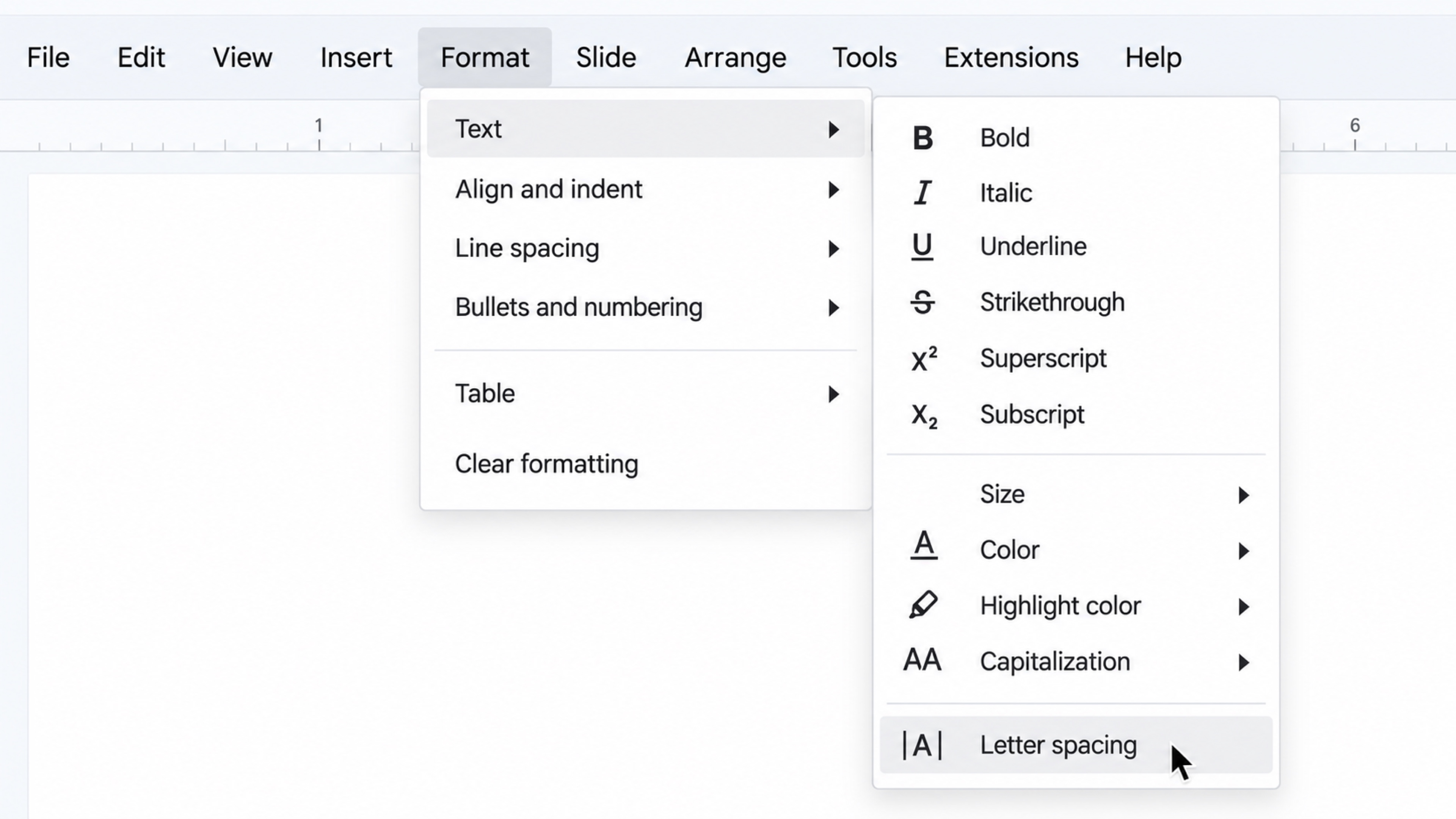
If your menu includes Format → Text → Letter spacing, use this route:
- Select the text inside its text box.
- Open Format → Text → Letter spacing.
- Choose a spacing option, then inspect the text at presentation size.
3. Use Meraki Theory’s letter spacing tool as an alternative
If you don’t see a letter spacing control in Google Slides, Meraki Theory’s tool offers an alternative.
- Copy. Select all text inside one Slides text box and paste it into the tool.
- Adjust. Choose the letter spacing, then copy the formatted text.
- Replace. Paste over the original text in Slides and check the formatting.
Desktop Chrome tests preserved editable text in simple cases. Mixed-format, multi-paragraph text remains unreliable; other browsers and mobile are unverified. The prototype processes text locally. The hosted version still needs privacy and network checks.
Tracking, kerning, and line spacing
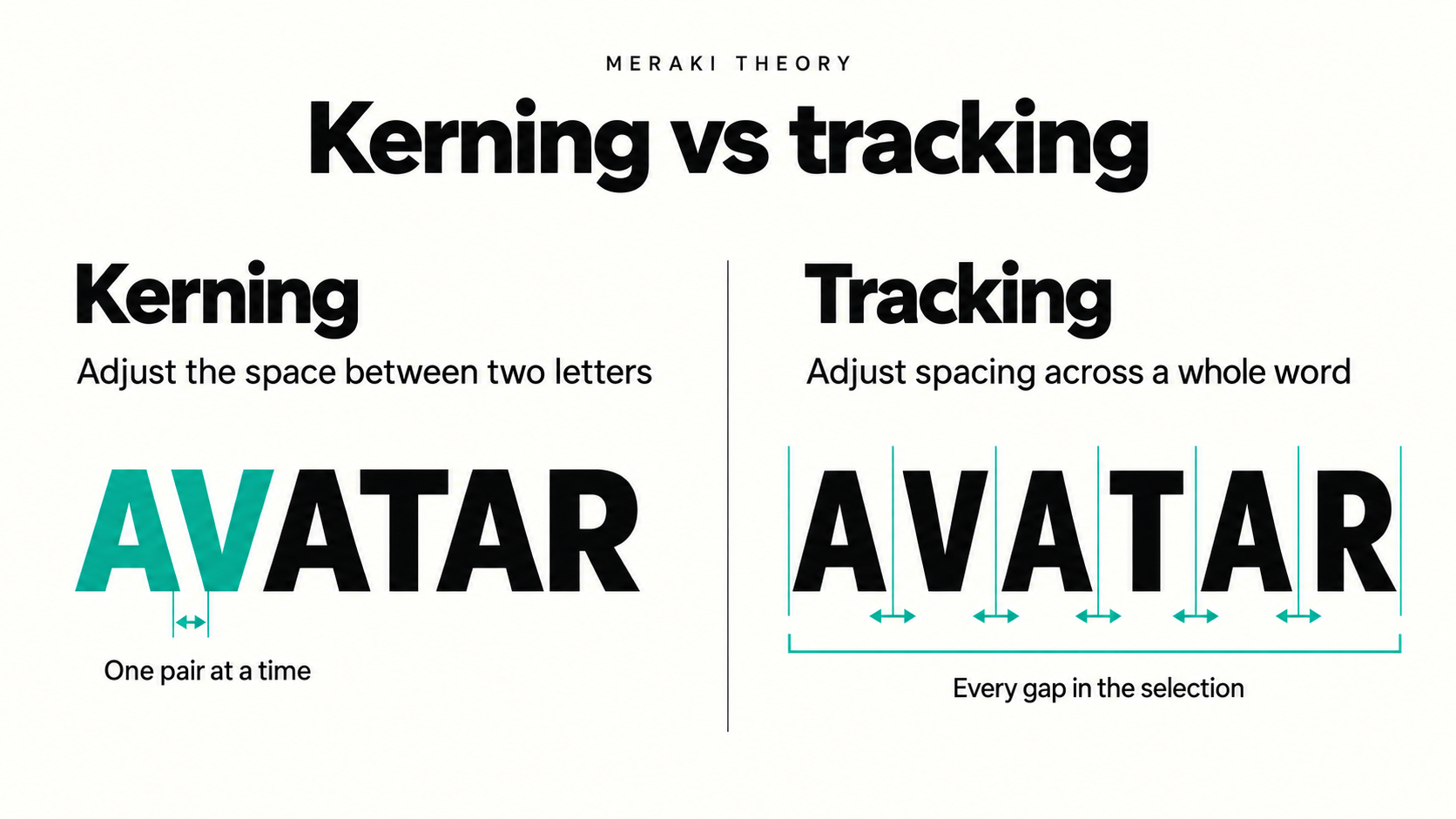
Tracking adjusts spacing across a text selection; kerning adjusts individual letter pairs, as Adobe explains. Line spacing controls the vertical distance between lines. Choose the adjustment that addresses the actual problem.
Choose spacing that improves the slide
Start with the font’s default spacing. USWDS typography guidance supports normal spacing for most text, with looser uppercase text and tighter large headings as useful exceptions.
Open up short uppercase labels
Try modest positive tracking on a label such as MARKET OPPORTUNITY. Stop when the letters begin to read as separate characters rather than one phrase.
Tighten large headlines carefully
Inspect the narrowest gaps and stop before letters touch. Shorten an overlong headline before using tight tracking to force it onto one line.
Keep body text comfortable
Keep body text at default tracking first.
Review font size, line length, and line height together; Material typography guidance connects line height with type size. A point of tracking has a larger proportional effect on a small caption than on a large title.
Repeat the decision across the deck
Apply the same treatment to labels and headlines with the same role and size. Check them in presentation view, where weak spacing and awkward wraps are easier to spot.
Frequently asked questions
Will the tool turn text into an image?
Verified test cases remained editable text. Check the result before applying the workflow across a deck.
Should I add spaces between letters manually?
No. That inserts characters into the copy and makes editing harder. Use a formatting control to adjust tracking.
Make the adjustment serve the message
Meraki Theory is a presentation design agency whose portfolio includes work for Airbnb, Meta, and Chase.
Talk with us about your presentation’s story, design, and typography.